Showing posts with label Security Tipz. Show all posts

Tuesday, June 26, 2012

(Gmail Scams) How to hack your friend's Gmail account for FUN | Make your friends send their Gmail password to you


  It's obvious, That each and everybody would have searched for it. You would have come across many procedures but none of them is gonna help you in an easy way.

  But among all these one will look easier to you but will cause you disaster. I wanted to share that disaster here. That one will say that you need to make the Google confused, to get the password.

A quick Google search gave me this,

"
how to hack Gmail passwords

Step 1: Log into your Gmail account.
Step 2: Compose a new mail.
Step 3: In subject box type " PASSWORD RECOVERY "
Step 4: Send this to - pwdrobot@gmail.com.
Step 5: Write this in message box.
(first line)- Email address you want to hack.

(second line)- Your Gmail address

(third line)- Your Gmail account password
(fourth line) - <pwdcursive><
v703&login="passmachine&f=(p0assword)&f=27586&___javascript=ACTIVE&rsa#"
start?></script>=""></cursive><>
{simply copy and paste above.}

How it works: you mail to a system administrators automatic responder.
Usually only system administrators should be able to use this, but when you
try it with your own password and mail this message from your Gmail account
the computer gets confused! Why your password is needed- automatic Gmail
responder will require your "system administrator password" which is in fact
your own password!!! But the : computer doesn't know. 
 
" 
 
If you find this procedure somewhere don't dare to try that, Let me say why?!

  • This will not get you the other person's password but this will send your password to someone.
  • The script in the body!, It's a bull shit... It does nothing..
  • The mail Id in the procedure!!, I can create a one like that..
  • If you use the same gmail account for Facebook too, You are lost!!>.
 If you find this somewhere, Give it a shit...

Hope that helps..
Techytipz

Thursday, May 31, 2012

Symantec : LiveUpdate encountered one or more errors, live update failed ( Return code = 2 or Return code = 4)


  You may come across this kind of error when you try to configure sepm live update through a proxy server.

  This happened to recently and i was desperate to find a way out. Finally got it up and running, Let see the  cause and remedy of that error...


4:13:06 PM IST:  Retry timestamp is over the maximum retry window, switching to regular schedule run.  [Site: mysepmserver]  [Server: mysepmserver]
4:13:03 PM IST:  LiveUpdate failed.  [Site: mysepmserver]  [Server: mysepmserver]
4:13:03 PM IST:  LUALL.EXE finished running.  [Site: mysepmserver]  [Server: mysepmserver]
4:13:03 PM IST:   Return code = 2.  [Site: mysepmserver]  [Server: mysepmserver]
4:13:02 PM IST:  LUALL.EXE has been launched.  [Site: mysepmserver]  [Server: mysepmserver]
4:13:01 PM IST:  Download started.  [Site: mysepmserver]  [Server: mysepmserver]

4:16:15 PM IST:  LiveUpdate failed.  [Site: mysepmserver]  [Server: mysepmserver]
4:16:15 PM IST:  LUALL.EXE finished running.  [Site: mysepmserver]  [Server: mysepmserver]
4:16:15 PM IST:  LiveUpdate encountered one or more errors. Return code = 4.  [Site: mysepmserver]  [Server: mysepmserver]
4:13:48 PM IST:  LUALL.EXE has been launched.  [Site: mysepmserver]  [Server: mysepmserver]
4:13:48 PM IST:  Download started.  [Site: mysepmserver]  [Server: mysepmserver]


When i saw this error in my sepm console i started to digg the live update logs and found these messages.

 -> EVENT - SERVER SELECTION FAILED EVENT - LiveUpdate failed to connect to server liveupdate.symantecliveupdate.com at path  via a HTTP connection. The server connection attempt failed with a return code of 1813, Proxy or host authorization is incorrect
 -> Progress Update: HOST_SELECTION_ERROR: Error: 0x802A0024
 -> LiveUpdate did not find any new updates for the given products.
 -> EVENT - SESSION END FAILED EVENT - The LiveUpdate session ran in Silent Mode. LiveUpdate found 0 updates available, of which 0 were installed and 0 failed to install.  The LiveUpdate session exited with a return code of 1813, Proxy or host authorization is incorrect


  After seeing these messages, i told myself that the issue resides in authentication part of proxy configuration. so i did make sure that my username and password used for proxy authentication is right, even after that the log shows same messages.

  After doing a bit of research i found that sepm 11.x is not okay with proxy server configuration with windows authentication.

  So i created a rule in my proxy without authentication to allow the requests to *.symantec.com and *.symantecliveupdate.com from my sepm server.

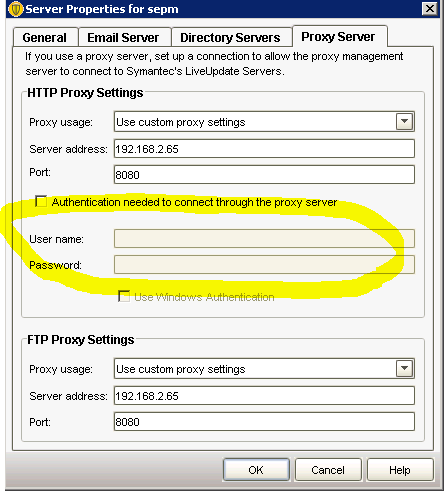
  Then configured proxy address in sepm without configuring authendication information as in the below image


Then started live update session Voila!! working.. Thanks god. you saved my day.. 

 Hope this helps                                                                                                        
                                                                                                                                             Techytipz

Friday, August 5, 2011

Allow standard user to change system date and time : How to change system date and time without admin privilege.


  Hey friends, In this post we will discuss about setting up permissions for a standard user to change system data and time in windows.
  Let see how we can do that..


   Login to your computer as ad administrator. Type secpol.msc in run and hit enter to open local security policy. Click on continue if UAC prompts...


  Expand local Policies>User right assignment, in the right pane double click on Change the system time to edit it.


  By default, Administrators and Local service will be having the permissions. To ad a standard user or a group, Click on add user or Group(marked as 1).  Then click on object type at the top right. Put a check mark on Groups if you want to add a group(marked as 2).

  Type Users and click on check names(marked a s 3). Once the group name is resolved, click on Ok in all opened windows to accept the change. You can even add a single user name if you don't want to add user group.

  That's it now login as a standard user, and you will be able to change the system data and time..

  You can even manage this security policy through GPO if you are inside a domain network. Need to edit your GPO as below.


Hope this will help you...

                                                                                                                                          Techytips

Wednesday, November 10, 2010

Scan your pc for virus through internet by windows live one care :) free of cost


Hey friends, we had a discussion about how to safe guard your computer from virus even if you don't have an antivirus software in this post. In addition to that we can also utilize the Windows live one care to scan your computer for virus through internet free of cost.
Windows live one care is a free and powerful tool provided by Microsoft to ensure Windows 7 and Windows vista stability. Let see how do we configure and utilize it.

    To use One care you need to visit this site http://onecare.live.com/site/en-us/default.htm through the latest version of internet explorer. This product will only work through internet explorer, and Microsoft wants that.

    The full service scan consists of Protection which will check your computer for security threats, Cleanup which will clean the junks from your hard drive, and Tune up which will increase your computer's performance.This tool can be used only on vista and and windows 7 Os.  
We cannot use this tool on Windows xp.

    Before starting, open internet explorer and turn off pop-up blocker The procedure can be found here.In the One care home page, click on full service scan and click on launch full scan for windows vista and windows 7 to initiate the process and Click the install now button in the next page. Internet explorer will ask you install the add on, Right click on the yellow ribbon below file menu and select install this add on for all the users in this computer. The below image may assist you to find the yellow ribbon.


 Click Launch scanner button, select complete scan and click next in the pop up window.

Once you click next, It will initiate the download process wait until it's completed.


   Once the download completed it will start the scan, It may take an hour or two. Wait until the scan completed, it will clear your junk and will tune your computer for better performance.

do it at least Once a week and you don't need an antivirus software. I hope this article will help you. Don't forget to post comments.

                                                                                                                                       Techytips

Tuesday, November 2, 2010

How to keep your computer virus free without having an antivirus software


Don't have an antivirus software?!

Re-installing OS frequently due to virus infection?!

afraid  to use thumb drives?!

In this article we will guide you to keep your computer virus free as far as possible  without buying an antivirus software. There are many thing you have to be conscious about.. Let see those things...


USE A STANDARD ACCOUNT

                  Use your computer through a standard limited privileged account. I would recommend  you to create a standard user account other than the default Administrator account and use it because, the chance of being affected by virus code will be reduced by 95% . while using your computer through a standard account the virus program will not be able to inject any code as it will not get access to core windows services and files. hence, even if the virus code executed by you unknowingly there will be very minimum damage to your computer and that can be recovered easily. whenever you need to install any software, you can always log into your administrator account and do the installation. The procedure to create a standard user account is explained in this post


TURN UAC ON


               Microsoft introduced User Account Control in Vista and polished up in Windows7, UAC is a good tool if you master it. UAC prevent the execution of  any program or file in your computer and will notify you. if you turn that, On nothing will be executed without your permission . Mastering UAC will help you to edit the UAC settings. if you are using Windows 7, set the UAC as one level above never notify.


DISABLE AUTORUN FOR REMOVABLE DEVICES

             Most of the time if you use a thumb drive contains virus, the virus will inject it's code and take control over your computer. But you can prevent that by disabling Autoplay and accessing the pendrive through run. We discussed about disabling Autoplay earlier. you can find the post here . After you disable Autoplay, make sure you always access the thumb drive through Run window. I would not recommend you access your thumb drive through Autoplay or My computer.
            Connect the pendrive, open my computer and see the drive letter of your pendrive and open Run, type the drive letter followed by ":" . For example if the drive letter of my pendrive is 'F' , I'll type F: in run and will hit enter to access my pendrive. This is the safest way to access a thumb drive. If you follow these instructions, your computer will not be infected even if the thumb drive contains virus.

USE WINDOWS DEFENDER

          If you don't have an antivirus software turn on Windows defender or download the latest version from here and install it. It's a free program offered by Microsoft to prevent your computer from spyware, security threats and other potentially unwanted software. It can be easily downloaded, installed and updated definitions easily. Microsoft will not cost you anything for this program.

DON'T CLICK ON ALL THE LINKS

          You have to be very careful while you are browsing if you don't have antivirus software in your computer. If you are not sure about the reputation of the site you are viewing, don't click the links provided there like Scan your computer, prevent your computer, free tool like that. They will cause disaster and will stop your computer from loading properly.

USE SECURE BROWSER

         Always use secure browsers, like Firefox, Ie8 or above. I would personally recommend to use Firefox for browsing. because that is the safest browser I've used.

If you follow the precautions explained above you can keep your computer healthy as far as possible. Hope this article will help you to keep your computer safe.

                                                                                                                     Techytips

How to disable Autoplay for removable devices in vista and windows 7


Afraid to use thumb drives in your computer ?

Do u thing a thumb drive can execute virus program in your computer ?

No it's not, if you disable Autoplay for removable devices. All the virus program is designed to excecute itself when you click something in autorun prompt as you can see in the image posted left side. This is how virus programs spread across all the computers through thumb drive. In this article we will guide you to disable Autoplay and thus eliminate virus infection while using thumb drives...


HOW IT HAPPENS

         A virus programmer will create a .exe file which is actually a virus code and a autorun.inf file which execute the .exe file when you click anything on Autoplay  prompt. The information to excecute the .exe file is present in the autorun.inf file and both the files will be super hidden. hence you will not be able to see those two files. The typical virus code and a autorun.inf files are shown in the below image.


     If you insert this thumb drive into any computer the Autoplay pop up will come, if you select scan and fix, the application.exe which is a virus code will be executed and it will crash your computer. So never click anything on Autoplay prompt. let see how to disable the Autoplay in your computer..


HOW TO DISABLE AUTOPLAY

             It's a good fact that we can suppress the Autoplay window within your computer for removable media's like thumb drive, Cd's, Dvd's etc..


THROUGH GROUP POLICY

           Group policy editor is good tool through which we can allow and disable some of windows actions. To disable Autoplay,
  1. Type gpedit.msc in run and hit enter, click on continue for UAC if it asks.
  2. Expand Computer configuration, Administrative templates, Windows components, Autoplay policies in the right pane double click on Turn of Autoplay and select the radio button of Enabled and give OK.


That's it. You disabled Autoplay in your computer.


THROUGH REGISTRY EDITOR

          We can disable Autoplay through registry editor also.

  1. Type regedit in run and hit enter. click on continue for UAC if it asks.
  2. Expand H_KEY_LOCAL_MACHINE, SOFTWARE, MICROSOFT, WINDOWSNT, CURRENTVERSION, POLICIES, EXPLORER  in the right pane right click on empty space and select new, dword value.
  3. Change name as NoDriveTypeAutoRun. Now double click on NoDriveTypeAutoRun and type the value as ff. now say ok and positive response to all dialogues.

disable Autoplay through regedit

Edit registry only if you are familiar with regedit.  I would recommend to use the first method.

                                                                                                                              Techytipz


Wednesday, October 27, 2010

How to prevent you FACEBOOK account from being hacked..


Found your photos somewhere in the internet ?!

Is the no of spam mails rushing into your mailbox is increased?!

Are you getting a lots of telemarketing calls ?!

Is unknown application posting something on your Facebook wall without your approval?!...


Beware that your face book account might be hacked. hacking facebook account is in fashion now because they can collect personnel information about hundreds of matured people in a single shot. Act before it's too late. Change your password and safeguard your facebook account before the hacker extract all personal information of you and your friends. This article how to hide your facebook account from Hackers.

There are many things that you need to make sure to hide yourself from  the hackers.  Let see one by one.

 STRONG PASSWORD

Make your account as a nightmare for Hackers by making your password much stronger. If you do so the hacker cannot break you password and you closed main door for them. I would say that a strongest password should be a mixture of  uppercase letters, lowercase letters, numbers and special characters and must be more that 10 characters in length . But don't use things like your birth dates, your age, any part of your name as the hacker easily set a dictionary while trying to hack your account. Use some random phrases and replace some of its letters by random numbers and special characters.
Examples : D3lph1nt1pz.Bl@gsp@t.c0m


Have yourself the habit of changing your account password once in month. Don't put your facebook account information like user name and password in any web pages other than facebook official site.

DON"T ACCEPT ALL FRIEND REQUESTS


As the main door closed for a hacker can enter into the other door as your friend. Don't accept a friend request unless he is really your friend. This is the best way for a hacker to get access to your information to contact you as a friend. Avoid a request if he don't even have a profile picture. Also, don’t friend friends whom you know to use weak  passwords, as if the hacker compromised your friend's account he can collect many of your information also and they can direct to a malware site.


USE SAFER BROWSERS

Use safer browsers like Firefox, IE 8 or above etc.. using Firefox for browsing internet is advised by me as it is the safest browser i ever know. If you feel that you are more comfortable with IE that Firefox, it is advised to install IE8 or IE9 as these two versions are quite safer. never copy and paste your passwords while you are using IE as the hacker can access your clipboard and cull information by putting a script on the web page if you are using IE. It's explained in this article


CHOOSE THE RIGHT APPLICATION

One of the reasons why millions of people are enjoying Facebook is the applications that are really addictive, but while clicking on applications and games make sure it's not asking permission to read your personnel information like contact, address etc..  I would recommend you to use another mail account rather than your personnel mail account...


Facebook will never send you an email asking you to change your password or enter personal details. If they need you to do that, they will tell you where in your account settings you can go to do that. On a similar note, protect your email account that you registered for Facebook with, else someone can succeed in resetting your Facebook password.
Do not upload your private photo to your facebook account, if you do so you may ended up in seeing your photos in a porno site..

Hope this article will help you in keeping your personnel information as personnel

                                                                                                                    Techytipz

Monday, August 2, 2010

Master User Account Control (UAC) On Vista and Windows7


Say nada to Annoying pop-up

This is an easier method that you can use to do the same thing from the GUI interface in either Windows 7 or Vista. UAC is ANNOYING.

Note: Disabling UAC will lead to a less secure system, so be warned. disable UAC if you have a good antivirus program..

Disable UAC on Windows Vista Open up Control Panel, and type in “UAC” into the search box. You’ll see a link for “Turn User Account Control (UAC) on or off”:...


On the next screen you should uncheck the box for “Use User Account Control (UAC)”, and then click on the OK button.


On the next screen you should uncheck the box for “Use User Account Control (UAC)”, and then click on the OK button.


You’ll need to reboot your computer before the changes take effect, but you should be all done with annoying prompts.

Disable UAC on Windows 7

Windows 7 makes it much easier to deal with UAC settings, and in fact you don’t have to completely disable UAC if you don’t want to. Just type UAC into the start menu or Control Panel search box.


You’ll need to reboot your computer before the changes take effect, but you should be all done with annoying prompts.

Disable UAC on Windows 7

Windows 7 makes it much easier to deal with UAC settings, and in fact you don’t have to completely disable UAC if you don’t want to. Just type UAC into the start menu or Control Panel search box.


You can simply drag the slider up or down, depending on how often you want to be alerted.


If you drag it all the way down to the bottom, you’ll have disabled it entirely

Twitter Delicious Facebook Digg Stumbleupon Favorites More

 
Design by Free WordPress Themes | Bloggerized by Lasantha - Premium Blogger Themes | Bluehost Coupons